

Quick answer: To use a pattern fill in Cricut Design Space, first download a pattern cut file, unzip it, and import it, choosing Upload Pattern under Pattern Fill (instead of the usual Image option). You can name and tag the pattern to find it later. Then add a basic shape, such as a heart, go to the Fill dropdown and select Print under No Fill, click the box to the right of Fill and choose Pattern, then pick your uploaded pattern to fill the shape. You can do the same thing with a text box, though a good thick font works best for this.
You may be quite familiar with creating craft projects using fonts and cut files with your Cricut machine, but have you ever tried working with patterns? You can even create repeating patterns for your designs! We’re going to show you some great ideas for how to use a pattern in Cricut Design Space. With patterns, you’ll be able to add another element to your craft projects.
We want you to get the most from your die cutting machine. Using patterns is a great way to expand your repertoire of crafting techniques and styles. You can use it to add colorful designs to your cut files, add a background layer to your greeting cards, signs, or scrapbooking layouts, and so much more. Keep reading to see our fun ideas for adding patterns to your designs!
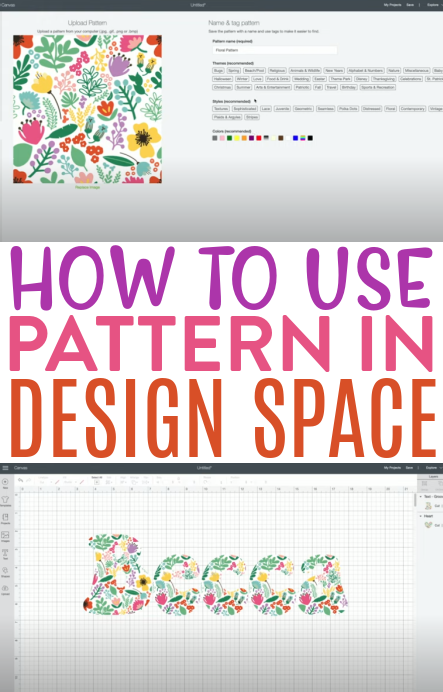
How to Use a Pattern in Design Space
Let’s start by grabbing a pattern cut file from here on Makers Gonna Learn. We especially love this floral one so it’s the one we’re going to work with today. Download it from MGL, unzip the file, and import into Cricut Design Space.

Usually when we are uploading a file into Design Space, we would choose Image. In this case though, we want to select Upload Pattern under Pattern Fill.

At this point, you can Name and Tag the Pattern as you wish. This makes it easier to find the pattern later when searching for it. You can skip that step and just use the default if you wish.
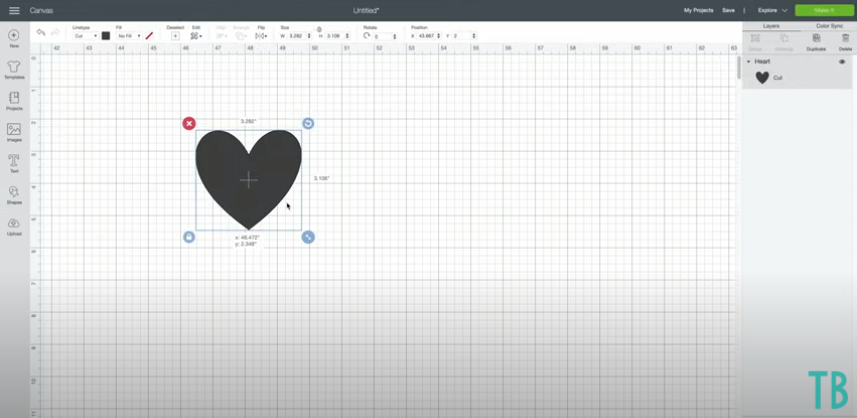
Next, we’re grabbing a basic shape. We are going to use a heart.
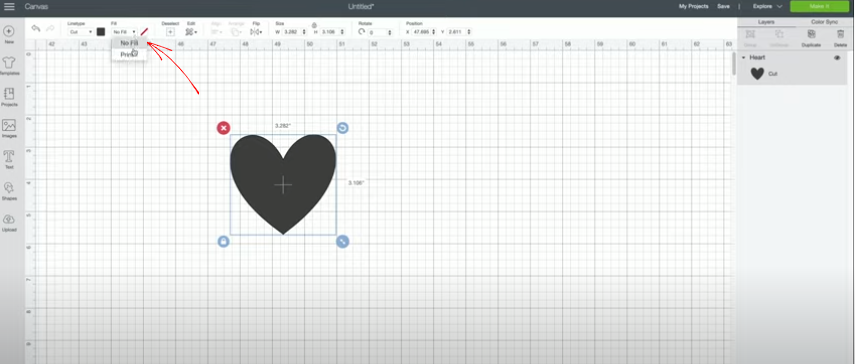
Go up to the top menu and choose the dropdown menu where it says Fill. Under No Fill, select Print.

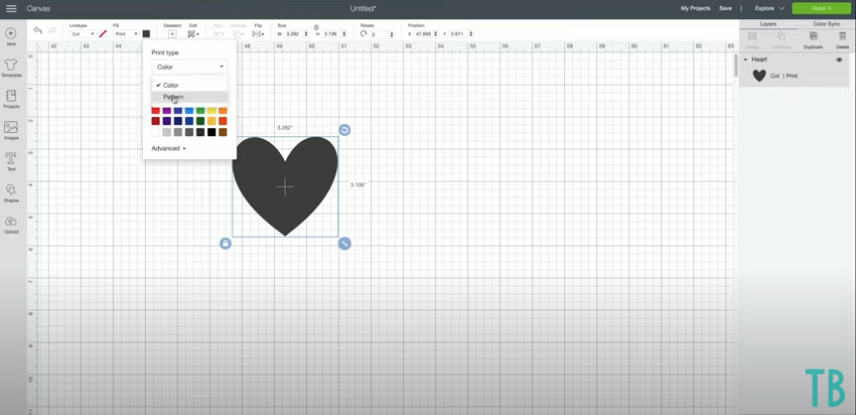
Next, choose the box to the right of Fill. Click on it and on that dropdown menu, select Pattern.

Now, you’ll see the patterns you have uploaded into Design Space. Choose the one you want to use.
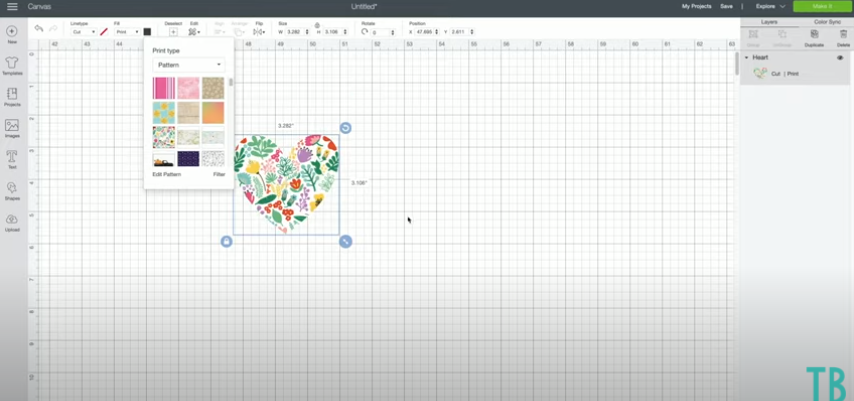
Once you select the pattern you want, your shape will be filled with it.

Another option instead of using a shape, is to open a text box and type some letters. You want a good thick font for this to work really well.
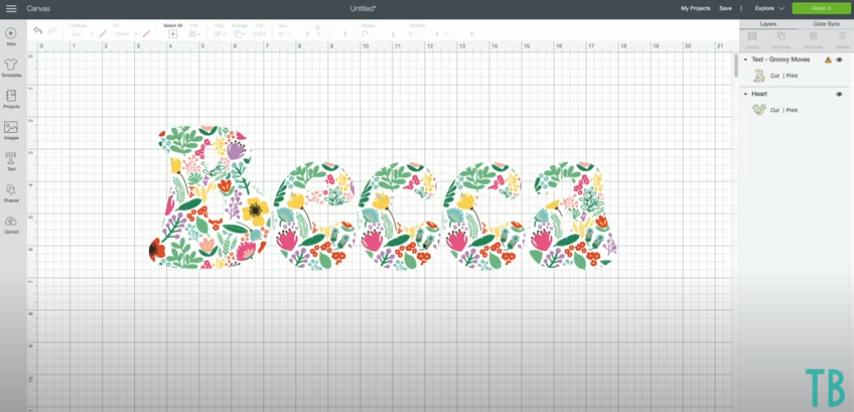
Do the same thing you did with the shape. Choose Fill, Print, Pattern, and then select your pattern.

Finally, we’re importing this pattern into Cricut Design Space as a PNG image file (not as a pattern this time). You could print this as is to make a background or even use the Slice function to cut something from it.

You could also use a pattern like this to create a background layer for a greeting card or party invitation.
There are so many great ways to uses patterned designs in Cricut Design Space. Try them out for your next craft project!
If you want to work with a repeating pattern, we’ll show you how easy it is to make one here!

Frequently Asked Questions
Do I upload a pattern the same way as a regular image?
No. When uploading a file to use as a pattern, choose Upload Pattern under Pattern Fill rather than the Image option you would normally use.
Can I fill text with a pattern, not just a shape?
Yes. Open a text box and type your letters, then choose Fill, Print, Pattern, and select your pattern just like you would for a shape. A good thick font works best so the pattern shows well.
Can I use the pattern as a background instead of a fill?
Yes. You can import the pattern as a PNG image (not as a pattern) and print it as is to make a background, or use the Slice function to cut something from it, such as a background layer for a greeting card or invitation.


